Dash cam homepage
Open the 70mai app, connect the dash cam and enter the dash cam homepage. You can preview the live video, take photo, or set up the dash cam.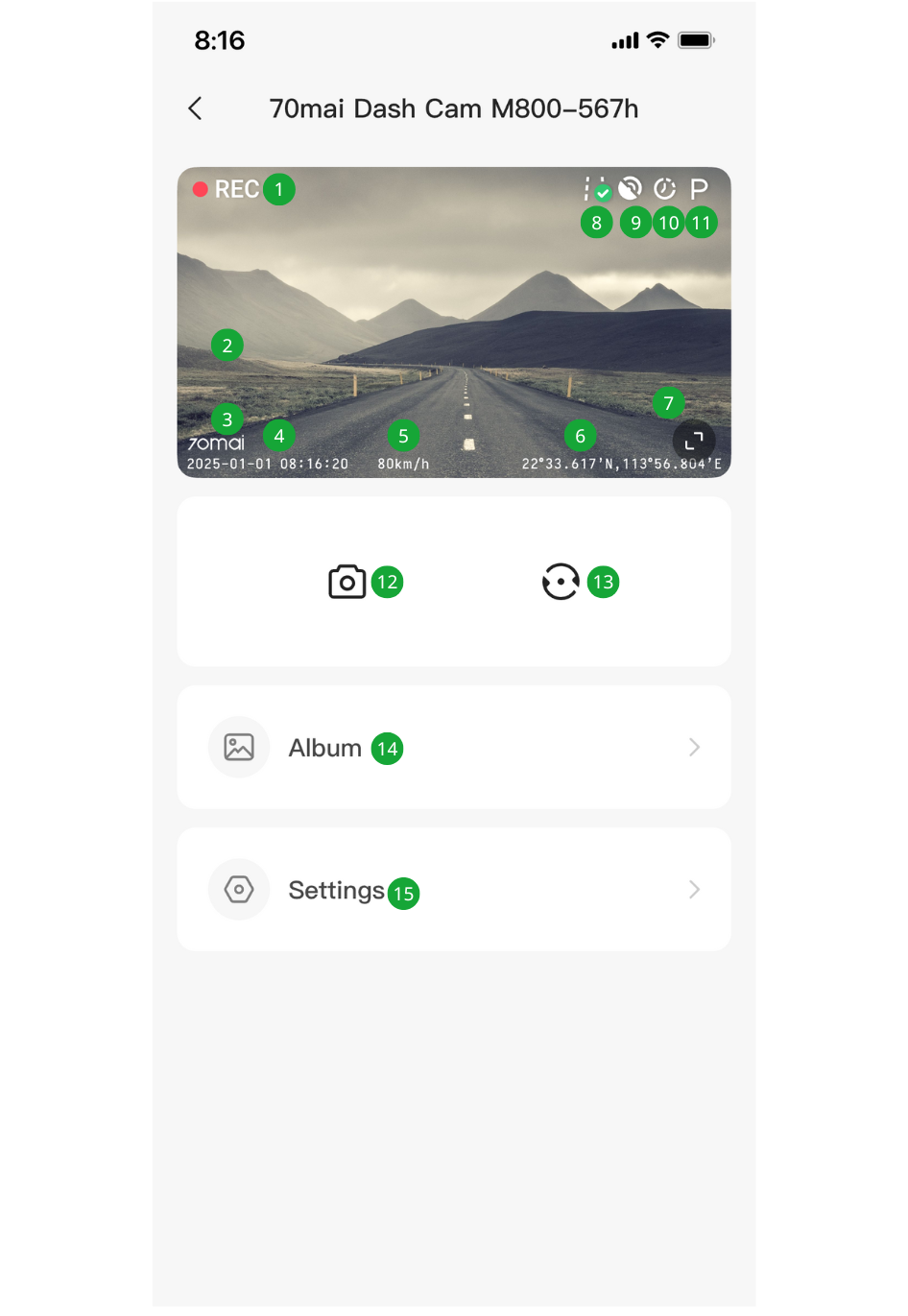
- During normal video recording, the
 icon next to
  on the main screen is blinking red.
 - Live video zone
- 70mai logo stamp. When enabled in the dash cam settings, the logo displays.
- Time and date
- Speed watermark. When enabled in the dash cam settings, the watermarks display.
- Latitude and longitude watermark. When enabled in the dash cam settings, the watermarks display.
- Tap the icon to view the live video in full screen.
- Indicates that the Advanced Driver Assistance System (ADAS) has been successfully calibrated.
- Indicates that location information has been obtained.
- Indicates that Parking surveillance (time-lapse photography) is enabled.
- Indicates that parking surveillance (collision detection/activity detection recording) is enabled.
- Tap to take photos.
- Tap to switch screens between the front camera and external camera.
- Tap to enter album.
- Tap to enter dash cam settings.
Updating the dash cam firmware
- Make sure your phone is connected with Internet and then open the 70mai app, find the dash cam card and tap the icon
 .
. - If there is available update of the firmware, a small red dot displays next to Firmware update. Tap to enter the downloading page.
- Download the new firmware version following the onscreen instructions.
- After the download is completed, return to the dash cam card, connect the dash cam’s Wi-Fi hotspot and enter the dash cam homepage.
- Tap Push to Dash Cam now and follow the instructions on the screen to perform the update.
- After the update is completed, the dash cam will restart automatically and then you can use it with the latest firmware version.
Note: The dash cam should be connected to an external power supply during the update.